



Something big
is coming!





Table of Contents


Free, Secure Browser Screen Recorder
Scribe's AI-powered browser screen recorder can save you hours by recording your screen directly from the browser to build powerful visual guides.
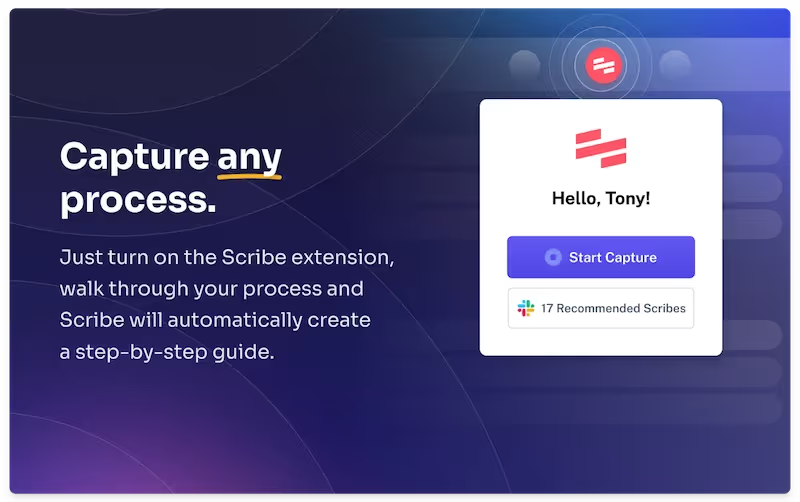
This easy-to-use screen capture tool and online recorder lets you record screen activity at the click of a button, auto-generating a step-by-step guide with:
- AI-powered text and descriptions.
- Clickable links.
- Annotated screenshots.
The Ultimate Browser Screen Recorder
With Scribe, you can do so much more than simple screen recordings. This powerful screen capture tool is the best on the market and loved by millions of teams.
Here's why:
1. Easy to Use and Capture Your Screen
Why is Scribe the best screen recorder for Chrome, Edge and more? It's simple — with Scribe, you can capture and share visual guides fast. With zero learning curve.
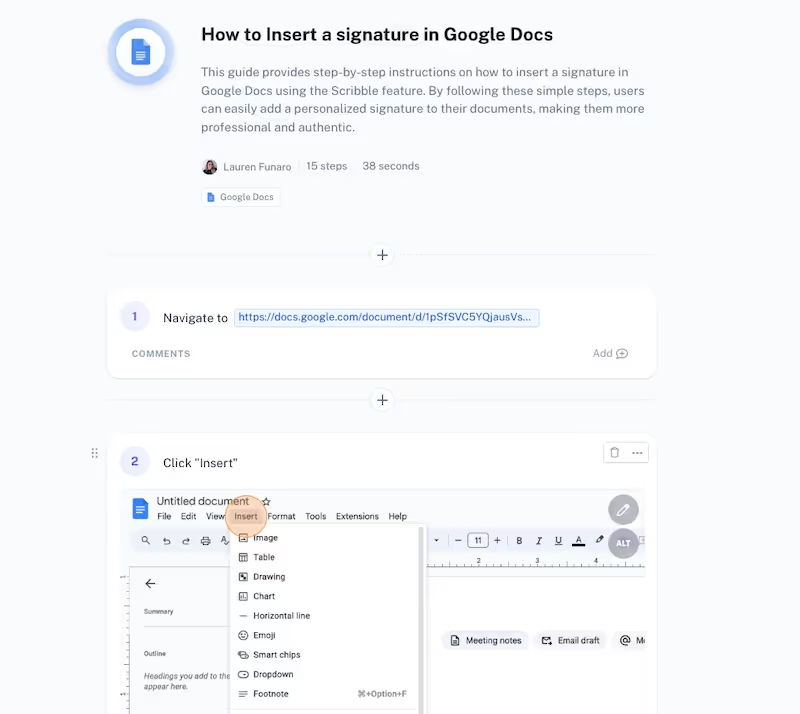
At the click of a button, Scribe records your browser screen as you go through your process. All you have to do is turn it off when you're done and Scribe will generate your step-by-step guide.
2. Create Customized Documents
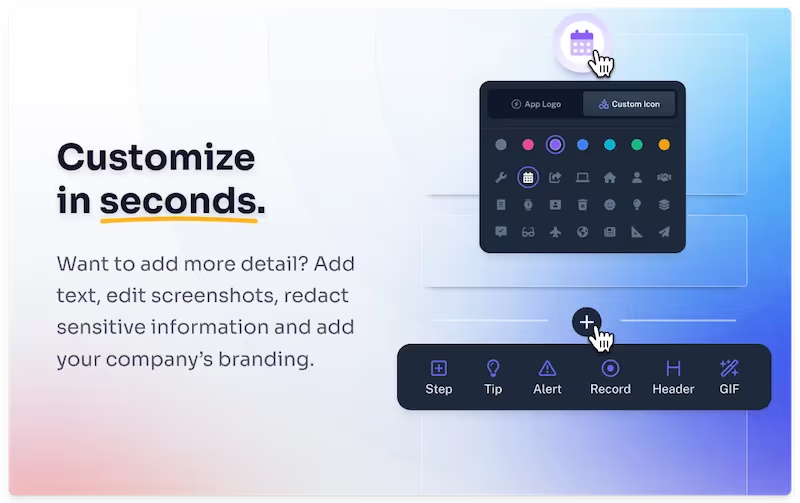
Scribe's free screen recorder tool creates guides that you can easily update and customize. Take advantage of awesome features like:
- AI-powered descriptions.
- Editing text and steps.
- Adding tips, alerts and more.
- Merging steps to create GIFs.
- Combining guides with AI-powered tools and templates to build training manuals, SOPs and more.
3. Share With Anyone Anywhere.
Scribe's free online screen recorder empowers anyone to record, edit and share browser activity in seconds.
With the help of Scribe's user-friendly and intuitive interface, you can transform your screen recordings into easily shareable content for teammates, customers and even family members.
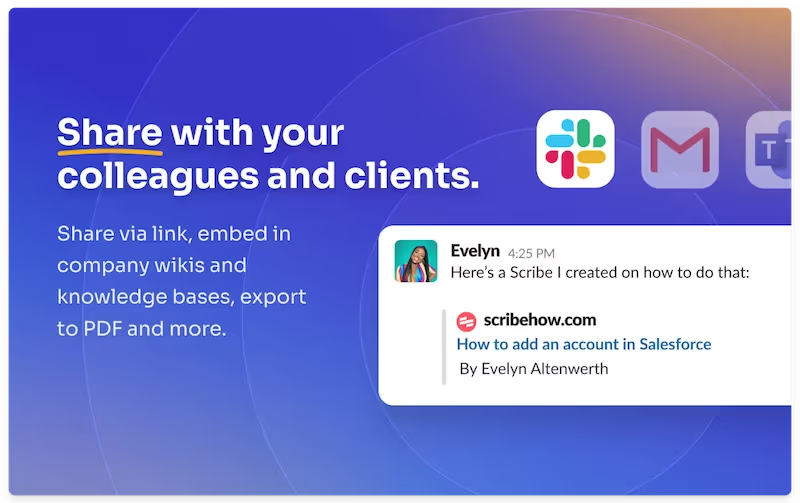
Record screen activity and share through:
- A quick link.
- Easily embedding HTML into a knowledge base or other platform.
- Exporting into PDF or Markdown (Pro).
{{banner-short-v2="/banner-ads"}}
How to Use Scribe's Browser Recorder
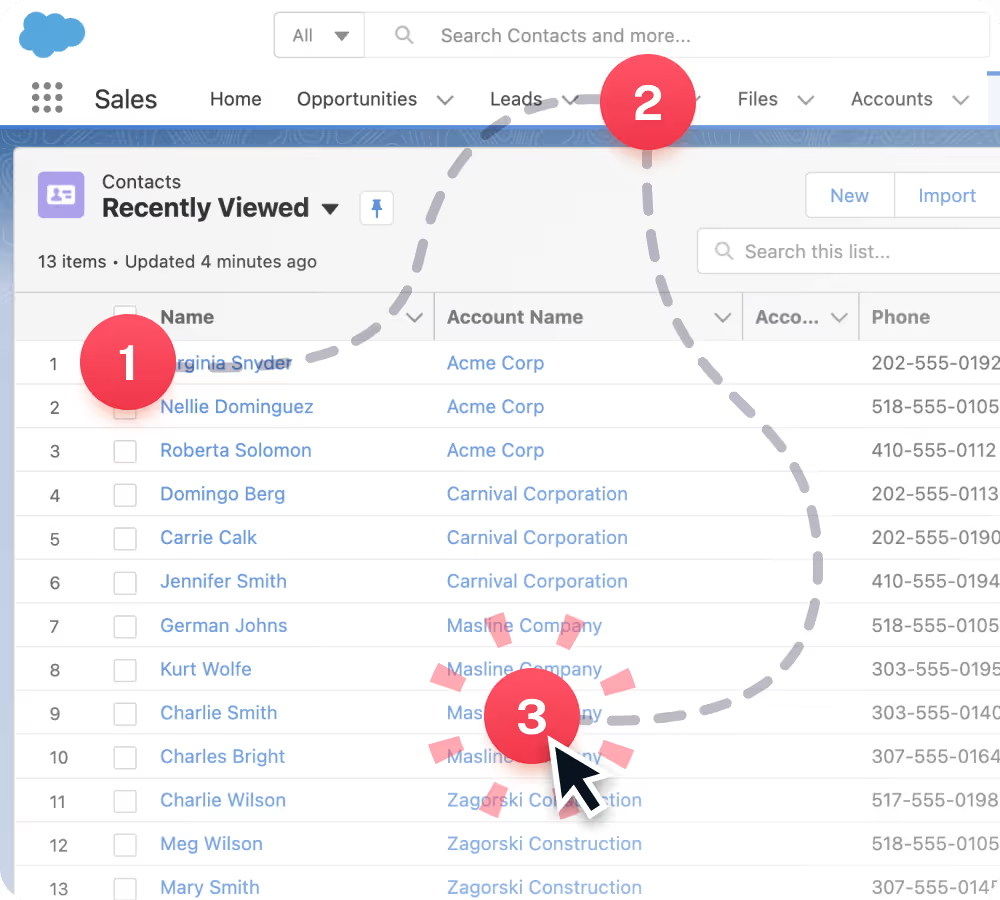
Step 1: Record Your Browser Screen
Install the Scribe browser extension, then choose the process you want to record.
Once you're ready, click on the Scribe icon in your browser toolbar to launch Scribe's user-friendly interface.
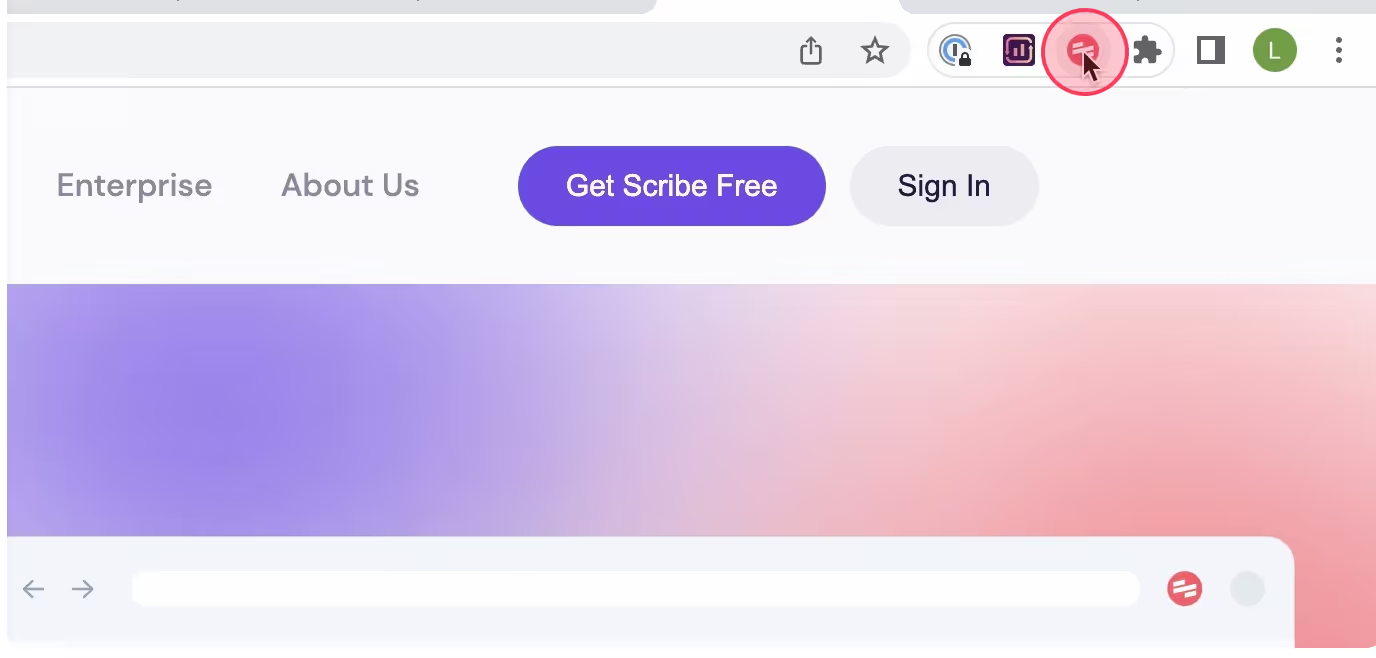
Click "Start Capture" and go through your process as usual.

Scribe will automatically capture screenshots and text based on your browser activity.
Step 2: Stop Capturing
Once you’ve finished, click "Stop Capture" to auto-generate your content.
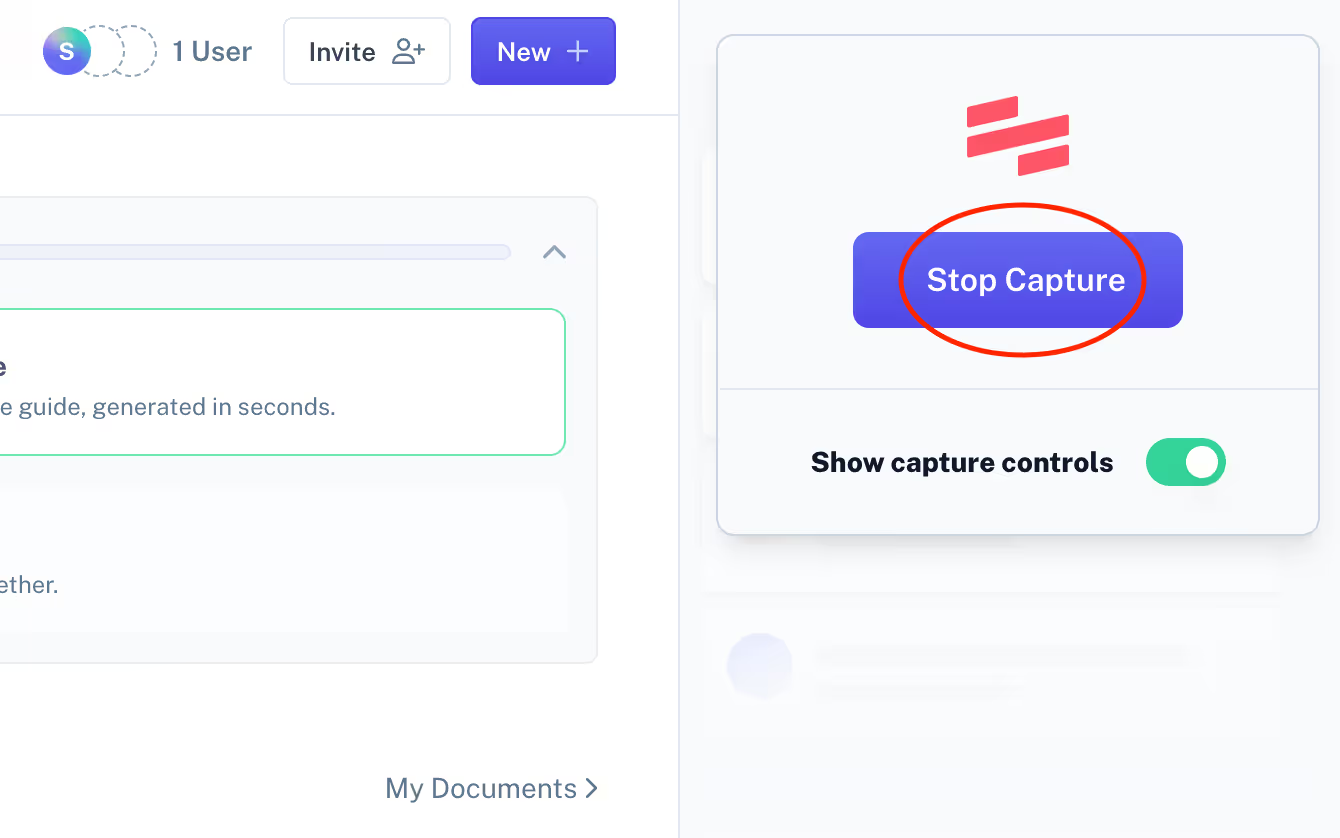
In seconds, Scribe creates a step-by-step guide with links, text and annotated screenshots.

Step 3: Edit & Customize
Now that you've recorded your screen activity, you can customize your guide.
Use the side bar to:
- Add AI-powered descriptions and a table of contents.
- Edit, remove or add text.
- Add additional alerts, tips and tricks.
- Merge steps to create GIFs.

With Scribe Pro and Teams Pro, you can directly edit your screenshots:
- Annotation tools: Add text callouts, pointers, and captions to provide context and explanations.
- Highlights: Draw attention with various highlighting options, such as arrows, shapes, and freehand drawing.
- Redaction: Use Smart Blur to redact sensitive information.
Step 4: Use AI to Build Larger Docs
Want to build out a more extensive guide? Use Scribe Pages to combine multiple guides with text, video and GIFs. Then, let AI do the rest!

Step 5: Share With Your Team
You can easily share the visual guide with your team.
- Send a quick link for easy access.
- Export your guide in multiple formats, including PDF, HTML or Markdown.
- Use Scribe's platform to distribute your guides.
- Embed your guide into your preferred platforms for seamless integration.
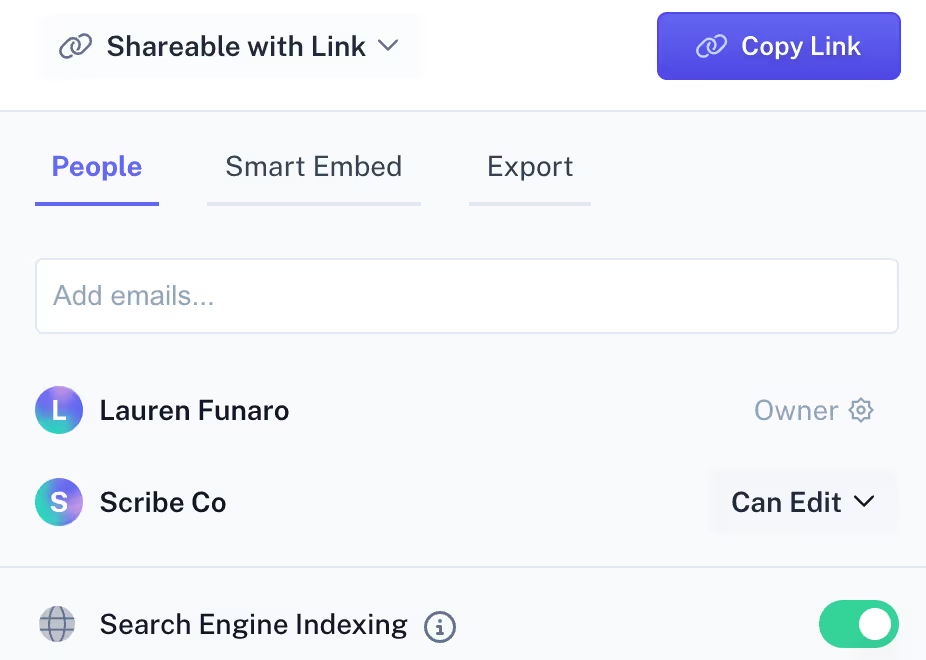
Add teammates to your workspace so they can take advantage of some amazing Team features, like Scribe Sidekick.
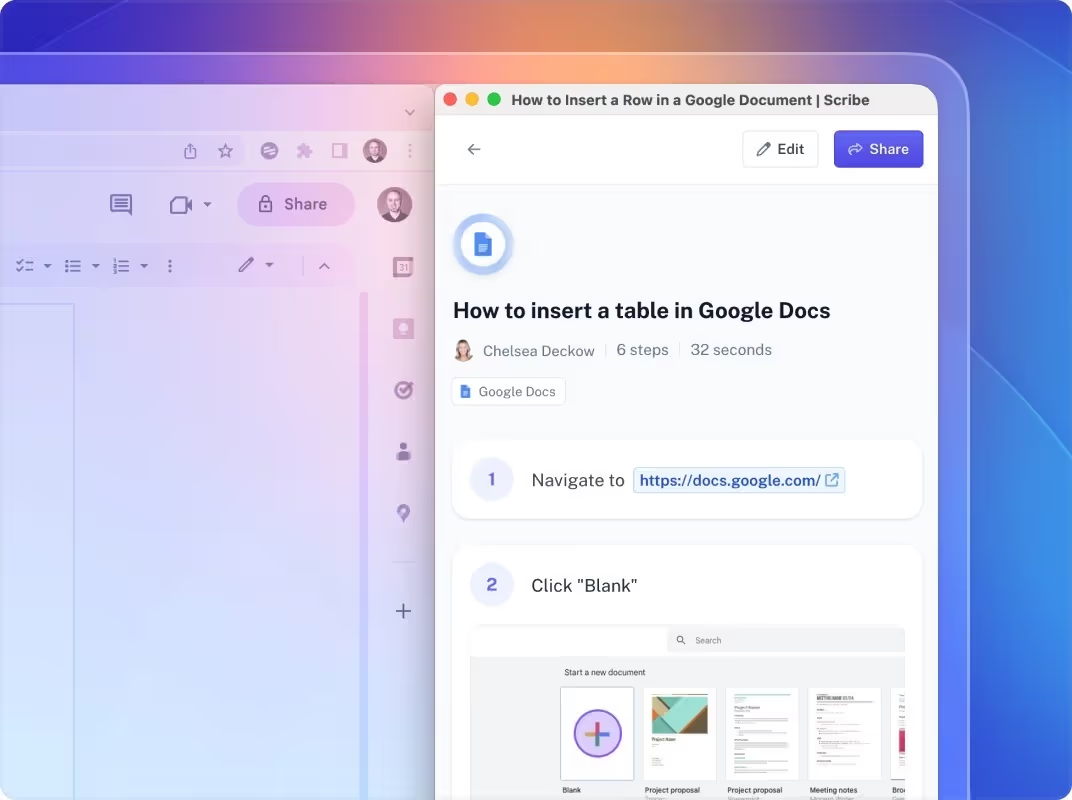
Sidekick has a slide switch that lets users pull up guides for any tool, and then follow along side-by-side as they work.
Why Use Scribe's Browser Screen Recorder
With Scribe, you can quickly and easily transform your full screen recordings into visual guides.
Here are just a few ways you can use your browser screen recordings:
- Answer a "How do I..." question.
- Show a less technical family member how to do something.
- Record walkthroughs of websites and web apps.
- Create tutorials for online courses or training materials.
- Demo new features or product walkthroughs.
- Build troubleshooting guides for common problems.
- Train customers and create a customer support knowledge base.
- Capture issues and bugs encountered on websites.
- Provide visual feedback on design proposals.
- Record your experience for usability testing.
- Provide remote technical support.
- Create step-by-step guides for procedures.
Scribe's Key Features
Use Scribe's powerful screen recording tools to:
- Capture any browser or desktop process with one click.
- Blur and redact sensitive information from screenshots (Scribe Pro).
- Start recording to automatically generate step-by-step guides with annotated screenshots and text.
- Auto-generate text and titles with GPT-4 AI.
- Easily edit to add alerts, tips and tricks, and update steps.
- Use Pages to combine multiple guides with text, video, images and more.
- Capture your entire screen with the desktop application.
- Share guides with a single click or embed them into your documentation; Scribe integrates with 1000s of tools like SharePoint, Notion, Confluence.
- Export to PDF, HTML or Markdown.
- Add your team to the Scribe Chrome extension to give them access to Scribe guides as they work.
Browser Screen Recorder FAQs
What Is a Screen Recorder?
A screen recorder is a tool that captures what a user is doing on their desktop or browser and performs microphone and webcam recording, making it useful for creating tutorials about on-screen procedures that can then be shared with others. Screen recording software is user-friendly, with a one-click record button and countdown feature. These apps also often include video editor functions, like an annotation or snipping tool.
What’s The Difference Between a Screen Recorder and a Screenshot Tool?
Screen recording tools perform recording with audio and video of on-screen actions and webcam. On the other hand, screenshot tools capture stills of entire screens or portions of them.
Do Screen Recorders Capture Audio and Video?
These tools record audio from the computer's microphone and can capture what's on the screen. Some tools provide the option to also record video.
Can Screen Recorders Be Used for Training and Onboarding?
One of the primary use cases for screen recording is making training and onboarding videos. HR team members can capture on-screen sequences with live explanations (via the webcam) and then use the video editor to cut, splice, and annotate clips. Common screen recording apps that offer this functionality are Camtasia, Clipchamp, Screenpal, and OBS Studio.
Scribe Capture is an ideal supplement to these tools, enabling you to turn processes into playbooks through automatic documentation. Support your onboarding and training processes with clear, step-by-step guides users can learn from and reference in the future.
When Should I Use a Screen Recorder Instead of Writing Documentation?
Screen recording is great for capturing online or other on-screen actions, providing a step-by-step visual guide for viewers. But other processes (like ones that require in-depth explanation or checklists) can be better documented in texts with accompanying images. Documentation is an essential training resource and the basis for operation manuals and guides to company processes.
Can I Capture My Entire Screen?
Scribe Pro and Enterprise users can use the Scribe desktop version to capture full screen processes across applications and even computer screens.
Use Scribe's desktop screen recorder to capture your full screen across tools like:
- Excel
- Zoom
- Legacy software.
- Various operating systems like Windows, Mac and Linux.
The desktop application allows you to capture any action on your computer screen desktop.
Does Scribe Record Video?
While Scribe does record screen processes to create visual guides, it does not record video.
However, you can easily combine Scribes with any video recording and even capture a Scribe at the same time as you record a video.
It's a great tool to teach video training with or respond to follow-up questions.
You can also merge steps in Scribes to create GIFs, or combine Scribes with videos in Scribe Pages.
Learn more about what you can do with Scribe:
- Windows Screen Recorder
- Mac Screen Recorder
- Free Screenshare Tool
- Image Blur & Redaction
- Annotation Generator
- Free Demo Maker
- Free Tutorial Builder
- Free Manual Creator
- Free SOP Generator
- Free Documentation Generator
- Free Screenshot Generator for Process Documentation
Looking for free templates to get you started? We've got you covered!
- Free Help Desk Templates
- FAQ Page Templates and Examples
- 15+ Step-by-Step Guide Templates & How to Create One
- Best Google Chrome Screenshot Extensions
- How to Create a How-to Guide + 8 How-to Tips
- 100+ Free SOP Templates: How to Write Standard Operating Procedures
Or check out these related resources that we think you'll love!
- How to Set Up Autocapture Screenshot: A Step-by-Step Guide
- Free online course creator
- Best eLearning software
- GitHub 101: How to Use GitHub Like a Pro
- 5 Ways to Improve Your IT Department's Productivity
- Best Customer Success Chrome extensions
- What is Customer Training? 8 Simple Steps to Optimize Your Program
Scribe's browser screen recorder tool lets you build powerful, visual instructional content in seconds.
Ready to get started? Record your browser for free.



