



Meet
Autocapture


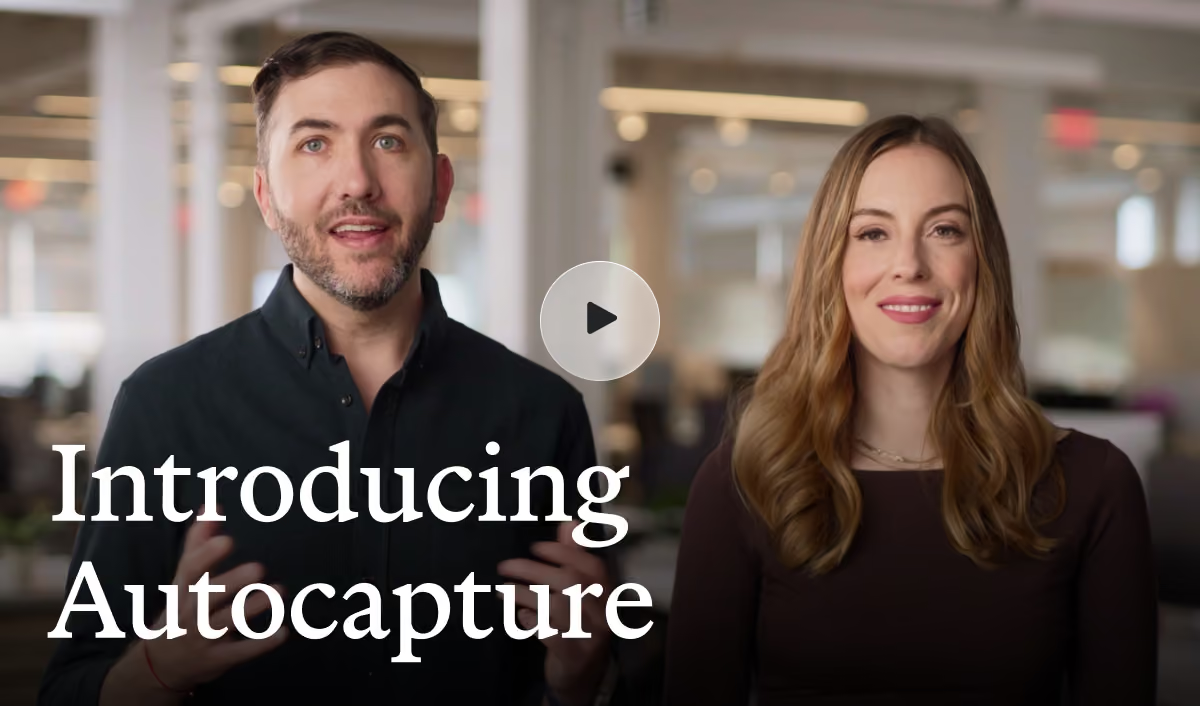
AI Smart Blur
Image Blur & Redaction
Enhance your online privacy effortlessly with Scribe's Image Blur & Redaction Tool. Protect sensitive information, redact personally identifiable data, and share secure communication with our free screenshot blur tool.
In this article

Blur screenshots in seconds
Take Image Blurring & Redaction to The Next Level With Scribe
Tired of struggling to protect sensitive information while also working quickly?
Use Scribe's screen capture tool to build and share visual process guides while blurring sensitive information — in seconds. Scribe's enhanced privacy measures let you say goodbye to privacy concerns and hello to secure communication!
What is An Image Blur Tool?
An image blur tool can secure information and edit and enhance screen captures.
Screenshot blur tools can be used for many purposes, including:
- Redacting personally identifiable information (PII): Use a blur screenshot tool to redact PII, such as names, addresses, phone numbers, and email addresses, from screenshots of documents or web pages.
- Protect sensitive information: Blur images to protect sensitive information, such as private data, financial information, or proprietary business data, from being accidentally or intentionally exposed. You can share relevant information without compromising privacy or security by blurring out specific screenshot areas.
- Mask faces or objects: Blurring photos to mask faces or objects in screenshots protects privacy or for creative purposes.
- Emphasize key elements: Blurred images can draw attention to specific screenshot features by creating a visual hierarchy. By blurring out less important background details to de-emphasize content, you can guide the viewer's focus to the main point of the screenshot.
{{banner-short-v2="/banner-ads"}}
Why Use Scribe's Image Blur & Redaction Tool?
1. Effortless Privacy Enhancement
Scribe simplifies the process of blurring images and redacting sensitive details from multiple screenshots. Scribe's blurring feature is the fastest way to hide sensitive information in screenshots. Use Scribe's screenshot blur function as you work to capture and blur highly confidential data with ease.
2. Easily Capture & Blur Multiple Screenshots at Once
Scribe captures your screen as you work, taking screenshots of every action you perform. When you're done, Scribe auto-generates a step-by-step guide, complete with your blurred images and text. With Scribe's Smart Blur feature, you can auto-redact categories of information to blur all screenshots at once. You can also use the manual redaction features to blur specific details.
3. Streamlined Protection
Scribe helps ensure your private details remain hidden by turning them into protected content. With Scribe's Smart Blur tool, you can blur specific areas and redact personal information to maintain confidentiality. You no longer have to worry about unauthorized access to your images and screenshots, and you can communicate confidently, knowing that your content is secure.
How to Blur and Redact Images with Scribe

Step 1: Capture Any Process
Install the Scribe Chrome extension, then click on the Scribe icon in your toolbar. Click “Capture” and Scribe will record your process as you do it.

Step 2: Click "Smart Blur"
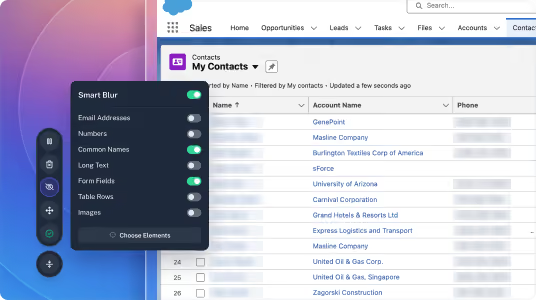
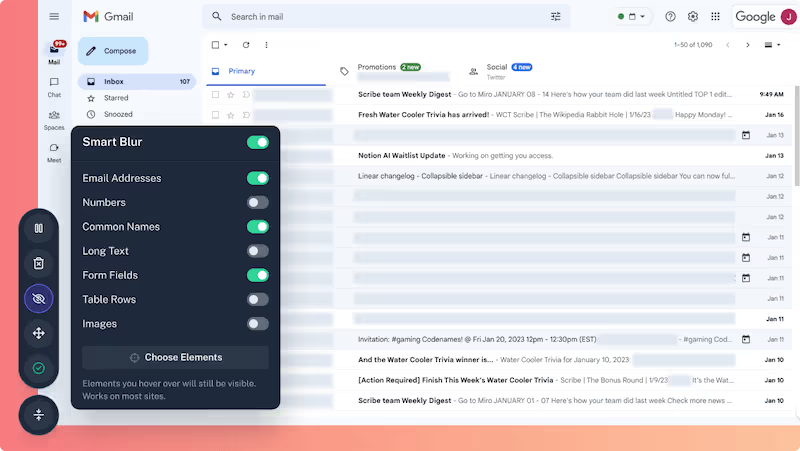
Once your screen capture begins, the on-screen recording controls will appear in the corner of your screen. To blur or redact an image, click “Smart Blur.” Smart Blur is currently available on all Scribe Pro plans.

Toggle any categories of sensitive data you want to be blurred out.
You can choose between 7 types of sensitive data to blur automatically:
- Email addresses.
- Numbers.
- Common names.
- Long text.
- Form fields.
- Table rows.
- Images.
Just click the toggle next to any data types you wish to blur, and you'll see a blurred effect automatically applied to your screen.
If there are additional elements that you want to blur out, select "Choose Elements" and click the elements you want to be redacted.
By blurring or pixelating the sensitive areas of the image, you can effectively redact information while still maintaining the visual integrity of your screenshots.
Then go through your process as usual. Scribe works in the background to automatically capture screenshots and create steps and images from your onscreen activity.
Step 3: Stop the Capture
Once you’re done with your process, click "Stop Capture." In seconds, Scribe will build your step-by-step explainer, based on the screenshots and text captured during your workflow.

Step 4: Use AI to Build Larger Docs
Use Scribe Pages to customize your guide by combining multiple guides with text, images, video and more. Then, let AI do the rest!

Step 5: Share With Your Team or Clients
Share your guides in seconds. Here's how:
- Share a quick link for easy access.
- Export your guide in multiple formats, including video files.
- Use Scribe's platform to distribute your guides.
- Embed your guide into preferred platforms for seamless integration.

Scribe's high-quality screen capture software redefines how you blur sensitive information. Try our screenshot blur tool and easily blur screenshots and screen captures.
FAQs
What Can I Do With a Screenshot Blur Tool?
Here are a few additional ways you can use a screenshot blur tool on your screen captures:
- Enhance clarity and focus: Enhance the clarity and direction of a screenshot by reducing visual distractions. You can make the screenshot easier to understand and navigate by blurring irrelevant or cluttered elements.
- Improve aesthetics: The blur effect can improve the overall aesthetic of a screenshot by creating a more balanced and polished appearance. Selectively blurring certain areas can produce a more visually appealing composition.
- Create visual effects: Add blur to create visual effects. You can blur the background of a screenshot to make the subject stand out or blur a moving object to simulate motion.
How Do You Redact An Image?
You can manually redirect sensitive information from your screenshots through the screenshot editor or automatically with Scribe's Smart Blur feature through the browser extension.
You can also manually redact information for individual screenshots through Scribe's screenshot editor.
To redact an image, follow these steps:
- Navigate to the desired Scribe. Make sure it is in edit mode.
- Click the "edit screenshot" shortcut.
- Click "Redact Forever".
- Press, hold, and drag over the area you would like to redact.
- Before you save, make sure the redacted area looks good.
- Click "Done" to permanently redact.
Want to learn more? Check out these related resources for more information:
- Best Screenshot Chrome Extensions
- Free Screenshot Generator
- How to Edit a Screenshot (For Personal & Professional Use)
- How to Annotate a Screenshot Like a Pro: Expert Tips
- How to Blur Screenshot Details
- Free Documentation Generator
- Free Manual Creator
- Free SOP Generator
- 15+ Step-by-Step Guide Templates & How to Create One




Copyright © 2026 Colony Labs, Inc. dba Scribe. All rights reserved.