



Something big
is coming!





Table of Contents


Screen capture isn't just about projecting content during a Zoom or Microsoft Teams video conferencing call.
While that screen sharing feature is handy for presentations, there is so much more that professionals can do with these tools. IT support personnel might use a screen sharing app to connect to a user's remote desktop and help them troubleshoot a tech issue. And HR teams might use screen recording to capture a training sequence for an onboarding video.
Finally, business leaders can utilize screen capture tools to automatically convert processes into guides that can be leveraged in implementation planning and user tutorials. These tools enable teams to create and maintain consistent workflows more easily.
Here, learn about all the ways screen capture and screen sharing can support your business and how Scribe's automatic process documentation features maintain the health of your workflows.
What is screen capture software, and how is it used?
Screen capture software goes beyond basic screen sharing (presentation) capabilities. Today's tools can record audio and video or run in the background of daily work on a device or web browser, documenting processes, taking screenshots of how they work, and turning them into user-friendly workflow guides. Here are a few key concepts to know when assessing contemporary screen-sharing or capture tools.
- Screenshot tools vs. screen recording vs. screen mirroring tools: Screenshot tools take stills of the information on a screen, while screen recorders capture audio and video of whatever a user is doing on a device, like clicking, opening documents, tools, and websites, or performing other tasks. Screen mirroring tools allow users to project information from one device (like a cell phone) onto another, usually larger, one (like a television).
- Built-in OS tools vs. third-party solutions: Built-in tools are those that come with your computer's operating system, like the Shift-Command-3 and Shift-Command-4 features on a Mac, which take full and partial screenshots, respectively, or Microsoft's Quick Assist, which enables remote control of another screen. Third-party software is a tool you have to install and includes paid and free screen sharing options, like TeamViewer, AnyViewer, AnyDesk, and CoScreen. External video conferencing platforms, like Zoom and Google Meet often also have these features.
- Screen capture for work, training, and communication: Screen capture helps teams more clearly communicate ideas by allowing them to record processes and turn them into visually-driven guides. For example, Scribe Capture automatically transforms any process on a desktop or browser into a step-by-step playbook, complete with screenshots and texts.
Best screen sharing, remote work, and capture tools
Today's top screen capture tools streamline your workflow documentation processes and help you achieve more consistent, efficient work. Here are ten trusted options for desktops, browsers, and mobile devices to consider.
- Scribe Capture: Scribe Capture is a workflow documentation tool for Windows and macOS that automatically transforms processes into viewer-friendly step-by-step guides so that users don't have to make operational manuals and guides. The tool ensures accuracy, giving teams a reliable resource to use in planning, training, and decision-making.
- Snagit: Snagit is screen capture and recording software for Windows and macOS, allowing users to take screenshots and record short videos to share with remote viewers, i.e. during onboarding. The tool also has easy editing tools for adding text, highlights, and arrows to the resulting guides.
- ScreenPal: ScreenPal (formerly Screencast-O-Matic) is a screenshot, webcam, and audio recording tool for Windows, Mac, iOS, and Android that enables users to make presentations and tutorials. The tool also has AI-powered transcription and hosting features.
- Droplr: Droplr is a cloud-based remote collaboration tool that allows teams to share and annotate screenshots and screen recordings on Mac, Windows, and Chrome.
- Ashampoo Snap: Ashampoo Snap is a Windows software for capturing screenshots and recording. It also has easy-to-use editing tools for adding clip art, shapes, and arrows.
- NexSnap: NexSnap is a screenshot editing toolfor Mac and PC desktops and iOS and Android mobile devices. Users can add backgrounds, effects, and branding elements, creating polished presentations and social media posts to share.
- TeamViewer: TeamViewer is a remote access software that enables users to control a computer or device elsewhere. This is a popular option for IT support teams.
- AnyDesk: AnyDesk is a secure remote desktop software that lets IT professionals and online collaborators access external computers or devices. It permits live file and screen sharing on Windows, macOS, Linux, Android, and iOS.
- Quick Assist: Quick Assist is a built-in Microsoft Windows remote support tool that allows an IT professional to troubleshoot issues on another person's PC.
- CoScreen: CoScreen is a screen-sharing platform that allows tech teams to remotely connect, view, and interact with windows and browsers.
Why should you use Scribe as your screen sharing tool?
- Automated Screen Capture: Capture your screen activities whenever you want — on or off a call. Scribe takes snapshots of each step and automatically generates a visual guide—so you don't have to wait for your next meeting!
- Simplify Communication: Transform complex processes and procedures into easy-to-understand, sharable content. Scribe simplifies communication by creating informative, step-by-step tutorials so you can communicate efficiently.
Save Your Content: With Scribe, you can create, share and save your screen shares to guide your audience through processes. You can access your Scribes for future reference, training, troubleshooting, audits, etc.
Getting Started with Scribe's Screenshare Tool
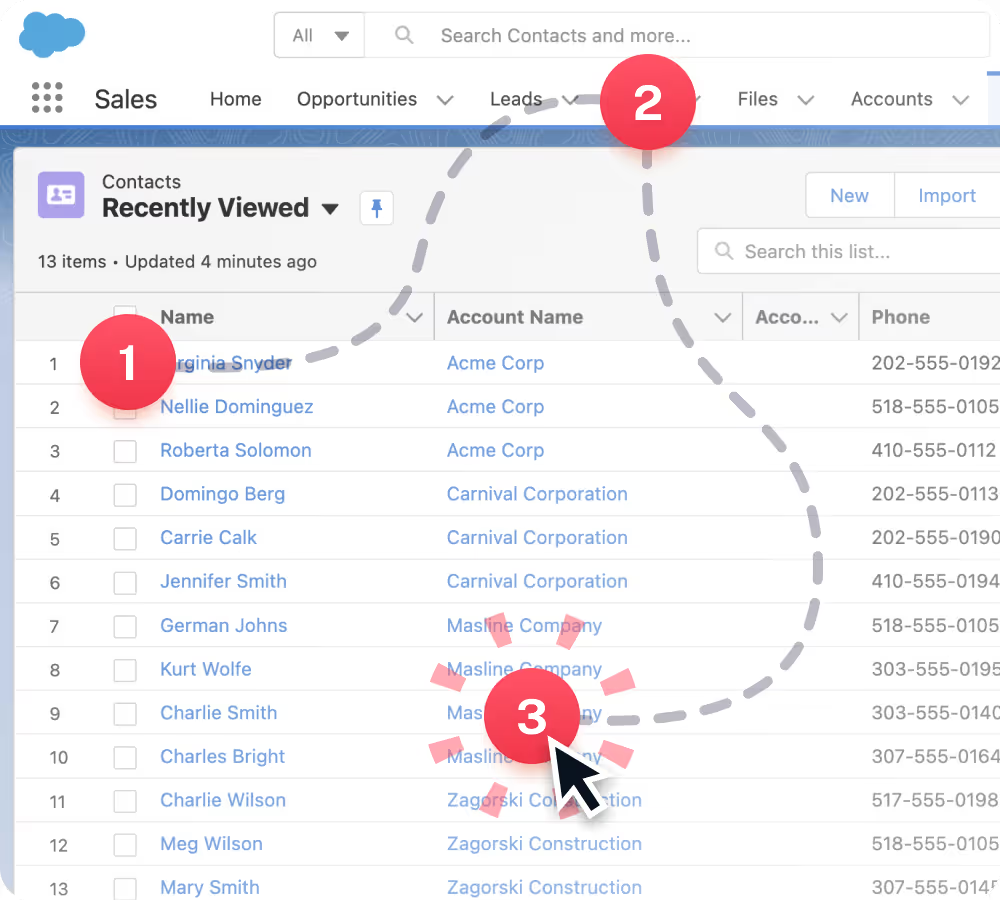
Step 1: Capture Your Screen Activities
Install the Scribe extension into your browser or download the desktop application and turn it on when you're ready to capture your workflow!
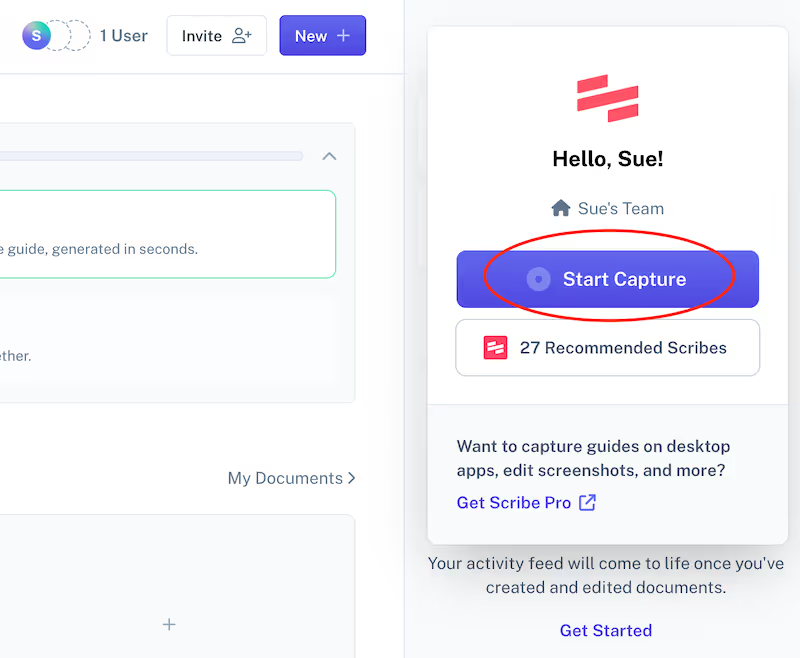
Step 2: Stop the Capture—Scribe's Screenshare Tool Generates Your Guide
Once you have completed your process, click "Stop Capture" and watch as Scribe automatically builds a step-by-step guide for you in seconds.
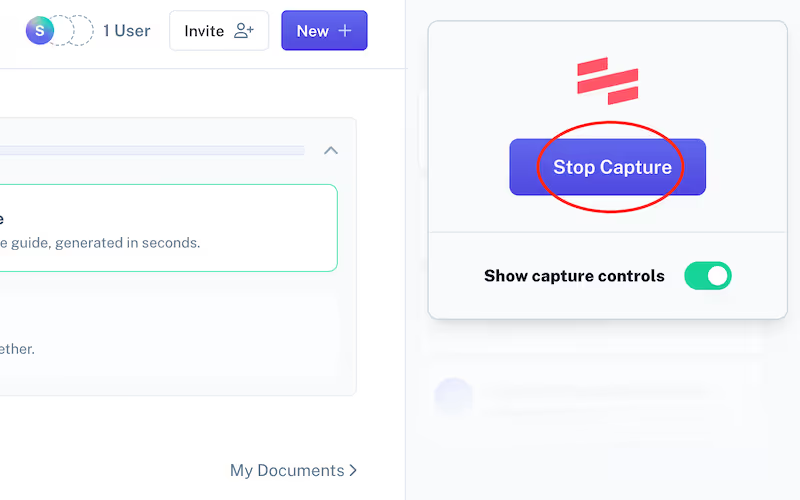
Step 3: Edit & personalize
Once you've finished your workflow, Scribe will auto-generate a step-by-step guide based on the captured screenshots and text.
Review your guide for accuracy, and edit to add information, clarifications, or highlight steps and processes requiring special attention. You can customize your guide by refining steps, providing annotations to images, adding tips and alerts, and even blurring out private information.
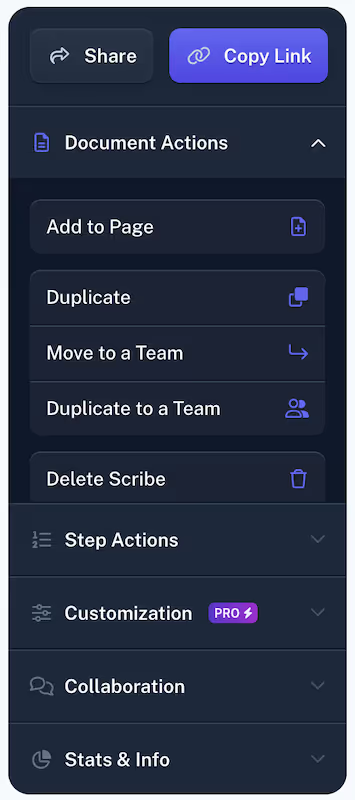
You can also combine multiple guides with text and video in Pages to create more comprehensive content. Or ask the AI to write any kind of document based on your captured screenshare.

Step 4: Share With Your Team
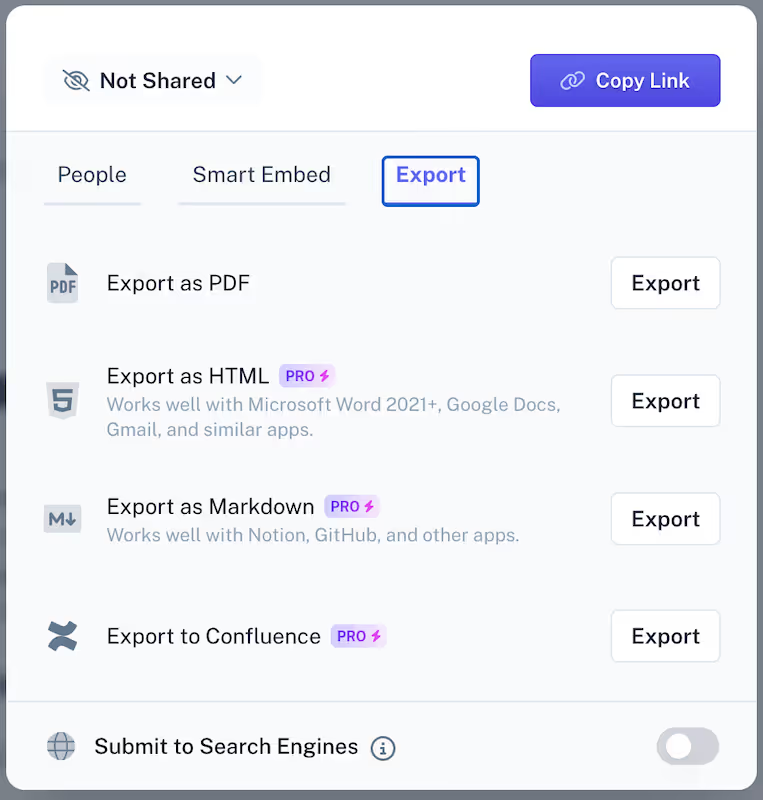
Once satisfied with your Scribe, save it in your workspace, share the guide via a link, or embed it in your documentation. You can also export it as a PDF, HTML, or Markup.
You can share Scribes directly with your team or clients through links or easily embed them in your process documentation and presentations.
{{banner-short-v2="/banner-ads"}}
Stop losing time! With Scribe, you can quickly and easily create screenshare guides to collaborate across distances, making it easier to share what you know and work as a team.
Transform how you communicate by capturing your screen with Scribe. You'll never need to wait for another meeting again.
Learn more about what you can do with Scribe:
- Screen Recorder Tool
- Full Page Screen Capture
- A Better Snipping Tool
- Image Blur & Redaction
- Free Annotation Generator
- Employee Training Generator
- Free Handbook Generator
- Free How-To Guide Generator
- Free AI Documentation Generator
- Free Visual Aid Generator
- Free Screenshot Generator for Process Documentation
- Free Training Manual Generator
Looking for free templates and examples to get you started? We've got you covered!
- 15+ Step-by-Step Guide Templates & How to Create One
- How to Create a How-to Guide + 8 How-to Tips
- 100+ Free SOP Templates: How to Write Standard Operating Procedures
- Free Help Desk Templates
Or check out these related resources that we think you'll love!
- How to Set Up Autocapture Screenshot: A Step-by-Step Guide
- How to Edit a Screenshot (For Personal & Professional Use)
- How to Annotate a Screenshot Like a Pro: Expert Tips
- What Is an Instruction Manual & How to Create One
- Top Technical Documentation Tools
Use Scribe's AI-powered screenshare tool to share your screen activities and build visual step-by-step guides in seconds!



