



Something big
is coming!





Table of Contents


What’s an AI document generator?
AI document generators work by recording your on-screen actions as you complete a task and automatically converting them into structured process documentation with detailed text and screenshots.
Once the guide is generated, you can jump in to make any edits or revisions before sharing. The result is a finished, polished process document produced in the time it takes to do the task once.
{{banner-short-v2="/banner-ads"}}
How to use Scribe’s free AI document generator
Scribe's free AI document generator captures any business process and turns it into a clear, structured guide automatically, in just a few clicks.
1. Capture the process
Install Scribe and prepare to begin to perform a process, such as filling out an invoice in Xero or importing client data into Salesforce. When you’re ready, click the Scribe icon at the top of your screen

CliClick “Start Capture,” and the Scribe document generator will analyze your on-screen movements.
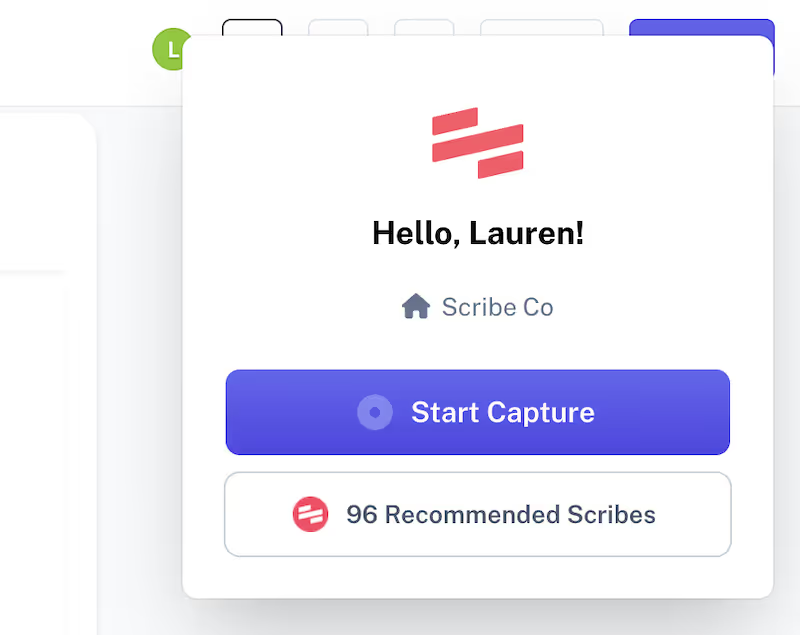
Now, execute your process as usual. Scribe follows along while writing instructions, taking screenshots, and highlighting cursor movements.
2. Stop the capture
When you complete your process, click “Stop Capture” at the top of your screen or “Complete Capture” on the controls to the left.
Tip: To use on-screen controls, hit “Show Controls” to open a sidebar. Here, you can also pause the capture and toggle on Smart Blur, a feature that hides sensitive data.

Our AI tool instantly generates a detailed guide with text, annotated images and links to any tools you accessed.
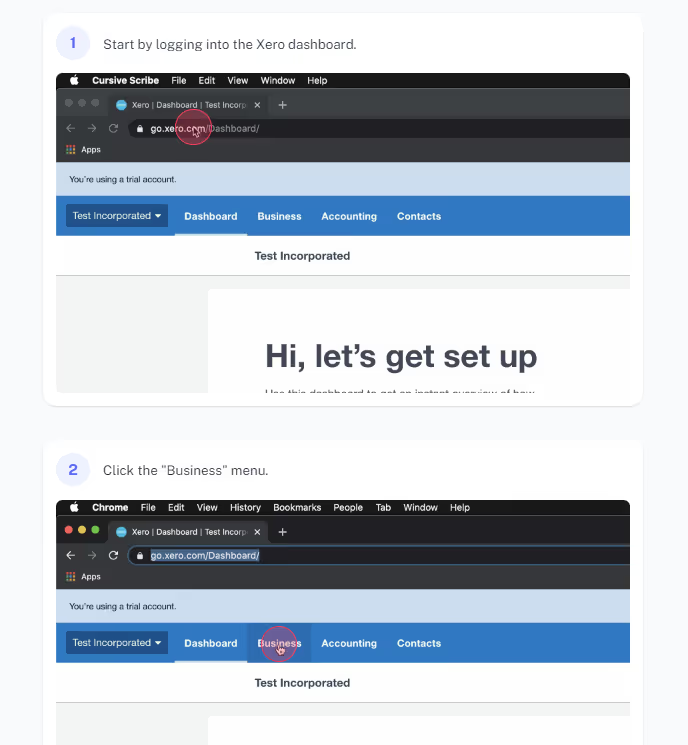
This resource gives your team actionable visual aids and descriptive steps to help them complete the same process in the future.
3. Edit and customize
Your Scribe is ready to go, but you can quickly make any edits you need, including changing the AI-generated content or adding a description. Just click the “Edit” button at the top of your guide to adjust the document.
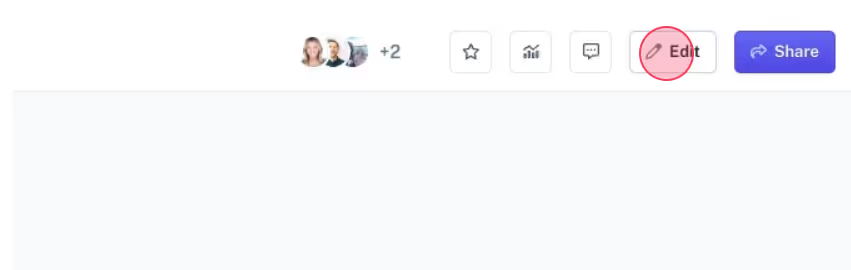
While reviewing your Scribe, add steps, change formatting, and condense instructions. To draw the reader’s attention to crucial advice and warnings, insert eye-catching tips and alerts.
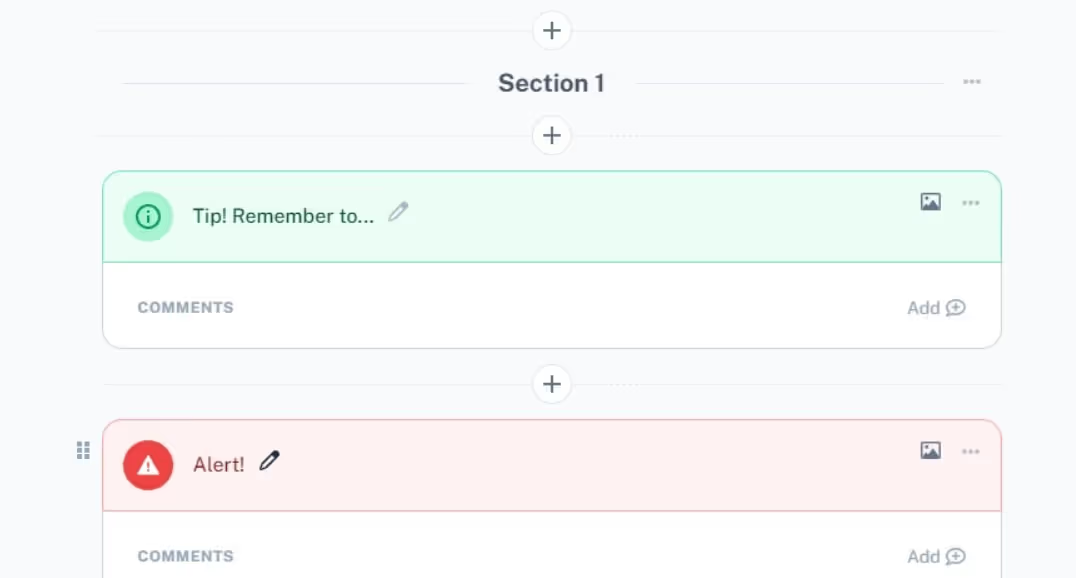
Review and adjust your Scribe to ensure it accurately reflects your process. The edit screen also has an option to request feedback, so this is a good time to ask colleagues for their opinions on the document.
4. Combine multiple documents
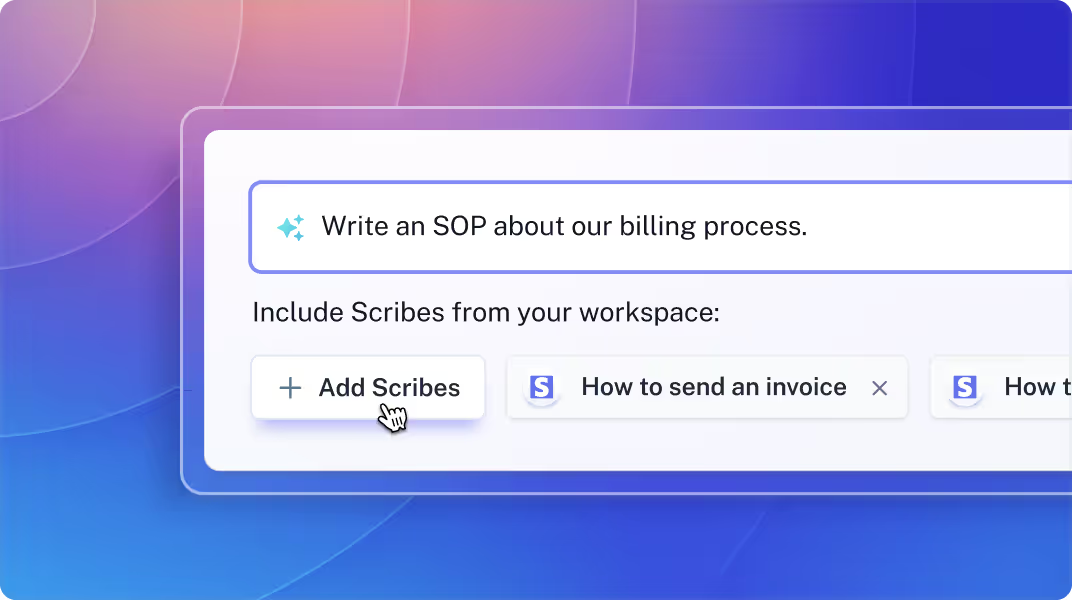
Don’t stop at one guide: Use Scribe Pages to combine multiple how-tos and SOPs into a centralized manual.
This feature is perfect for longer, more complex processes, like employee onboarding or training. For example, your onboarding checklist can include Scribes for setting up Slack and scheduling introduction meetings.
To insert additional resources into your document, simply click the “Add Scribes” button at the top of the page.
5. Share with your team
It’s time to distribute your Scribes so employees can use this new resource. Generate shareable links and embed codes, or download manuals as PDFs and send them via message or email.

To ensure your documents stay up to date, encourage your employees to provide regular feedback. Scribe’s collaborative features let your team leave simple emoji reactions or detailed comments and questions. Even though your document is technically finished, it’s easy to make updates and edits whenever you want.

Types of documents you can create with Scribe’s AI document generator
Scribe’s AI document maker helps you build instructions for any business process, from role-specific tasks like handing over projects to general instructions like scheduling messages on Slack.
Here are a few of the most common documents you can write with Scribe:
- Troubleshooting guides: Document solutions to common issues clearly and consistently, so your IT and customer service teams have reliable references to turn to without escalating every problem.
- Standard operating procedures (SOPs): Use AI-generated SOPs to document any workplace process consistently and accurately, from handling customer complaints to filing reports and managing approvals.
- Training manuals: Generate training documents for new hires, update teams on safety protocols, or create materials for onboarding programs and work conferences, all without manual writing.
- How-to guides: Create clear, step-by-step instructions for tasks like using software tools, contacting clients, or completing recurring processes that new team members need to learn quickly.
- User manuals: Build comprehensive user guides covering setup instructions, feature overviews, and service manuals using AI-powered document templates that are ready to customize and share.
- Project documents: Use Scribe's document creator to generate project proposals, issue logs, status reports, company policies, and other project documentation without starting from a blank template every time.
- Policies and HR documentation: Quickly draft and distribute company policies, including remote work guidelines, sick day procedures, and compliance documentation, using AI-generated document templates built for HR teams.
- Technical and software documentation: Capture and create essential materials for your IT team, including software administration guides, product instructions, and infrastructure documentation.
If you don’t have time to walk through the whole process, check out Scribe Prompts. Describe the document you want to generate and click “Done.” Our AI software follows your prompt to create a unique, actionable process document in seconds.
Best AI document generator: Why use Scribe?
The following features make Scribe one of the best AI writing software tools on the market.
Documentation for any process
Our AI tool captures any procedure and transforms it into comprehensive, step-by-step instructions. Turn on Scribe and complete your process as usual, no matter what it is — there’s nothing too small or complex.
Consistent, standardized procedures
Scribe generates each guide with a standardized title, format and visuals, making them uniform. This helps your knowledge base look more professional and improves task consistency.
Standardized SOPs also help employees get used to the format so they know how to navigate headers, find important links and provide feedback.
Easy, secure sharing
Our software provides several secure ways to send process documents to your whole team so you can choose the method that suits your needs. Share resources through:
- Shareable links with permission settings.
- Embedded codes integrated into third-party extensions or knowledge bases.
- Exporting options, such as HTML output, Markdown or PDF.
Customization and editing
Instructions shouldn’t be written in stone, so Scribe makes it easy to edit, update and revise every guide you make. At any time, a user with the appropriate permissions can:
- Add new steps or remove unnecessary or outdated ones.
- Edit existing steps.
- Include tips and alerts.
- Insert visual aids, including screenshots and videos.
Fast and effortless
Scribe captures your process as you complete it, so building a guide only takes as long as your task does. This makes it easy to fill a knowledge base with SOPs for every activity, even minor ones.
To save even more time, use Scribe to instantly generate documentation through detailed prompts.
{{banner-short-v2="/banner-ads"}}
Try Scribe: Your AI writing assistant
Scribe provides the tools to generate thorough, helpful guides for any process you can think of. Whether you’re building a long-form customer service manual or showing your new hire how to set up Gmail, think of Scribe as your personal AI assistant.
Sign up for free today and give it a try.
FAQs
Is there an AI that can create content and documents?
Yes — Scribe builds process documents by analyzing on-screen movements, automatically crafting accurate guides.
How do you create content with an AI document generator?
Download Scribe and turn it on before you execute a process. Our AI-powered tool captures your movements and creates guides with detailed text and annotated screenshots in seconds.
Is there a free AI document generator?
Scribe’s free tier includes the browser extension version, which offers access to our AI document generator, detailed customization features and sharing options.



